Question
How do I upgrade SciMoCa to a newer version?
Answer
Please proceed according the following steps:
Step 1
Backup of the SQL database
Please, create a backup folder anywhere on the hard drive first.
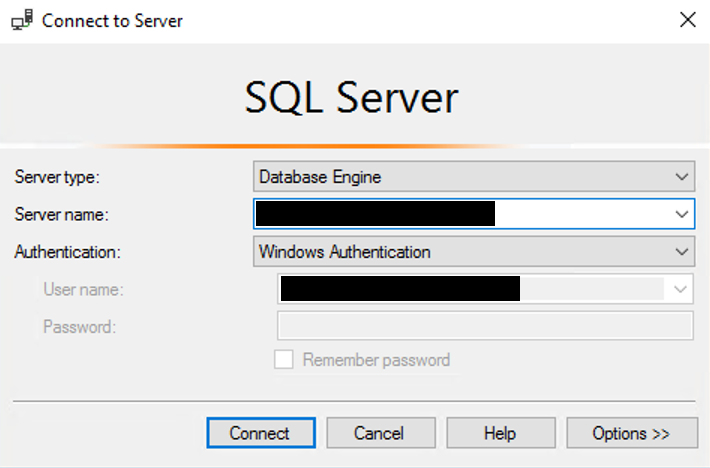
Open the Microsoft SQL Server Management Studio (SSMS) and login to your database:
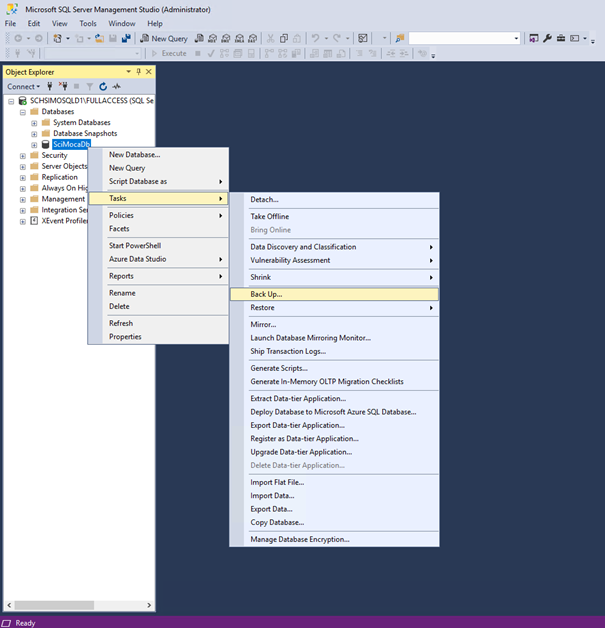
Right click on the database SciMocaDb > Tasks > Back up...:
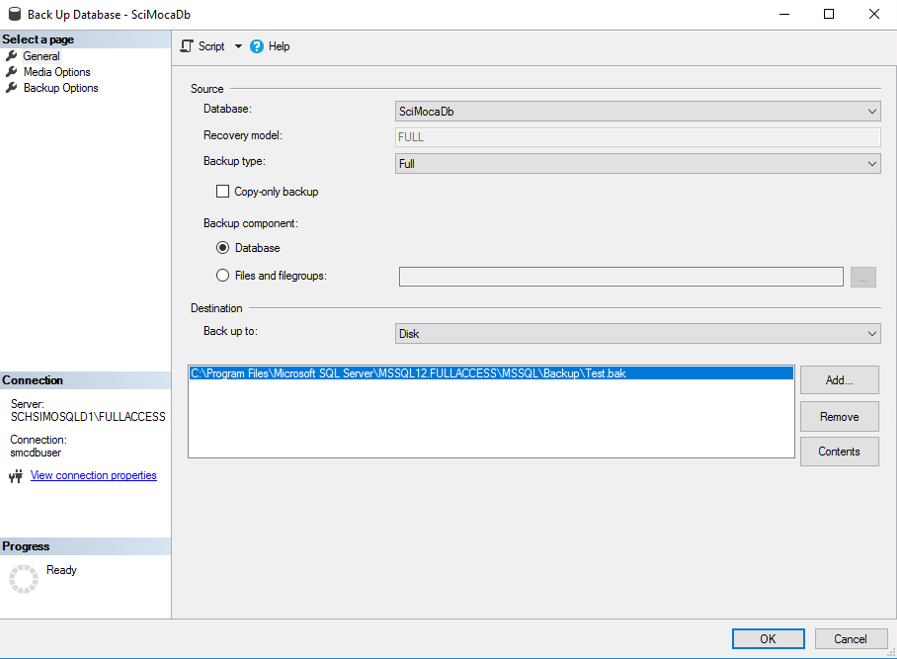
Set the backup options as follows or similar and click OK:
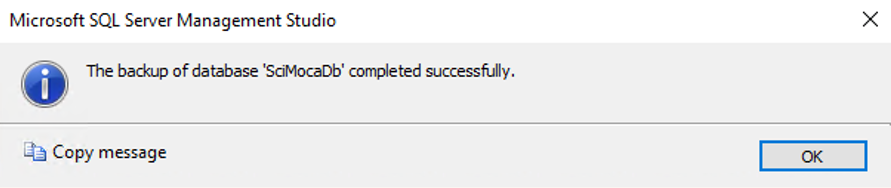
The successful result will be displayed:
Step 2
Backup of beam models and other data
Navigate to C:\inetpub\wwwroot\Web and copy the file Web.config file to your backup folder.
Navigate to C:\ProgramData\ScientificRT\SciMoCa\DesktopClient and copy the whole directory config to your backup folder.
Navigate to C:\ProgramData\Radialogica\SciMoCa\Server and copy the whole directory LinacModels to your backup folder.
Navigate to C:\Program Files\Radialogica\SciMoCa\Service and copy the file SciMoCa.Service.Manager.exe to your backup folder.
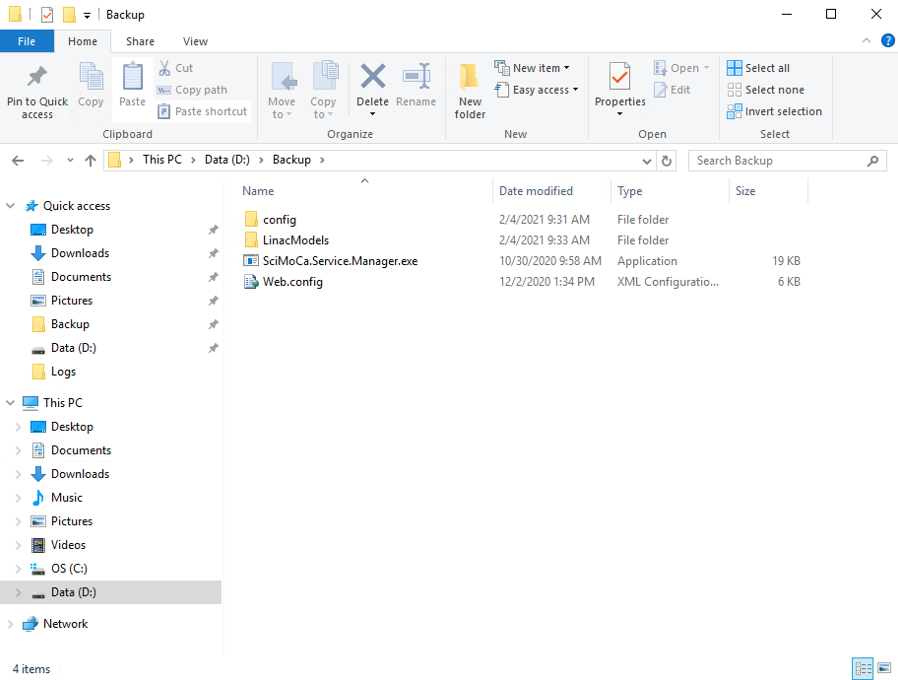
At the end you will have the following content in your backup directory:
Step 3
Check the SciMoCa and Radialogica process settings
Please proceed for these three Windows services identically:
- SciMoCa Dose Server
- SciMoCa Service Manager
- Radialogica DICOM Storage Service
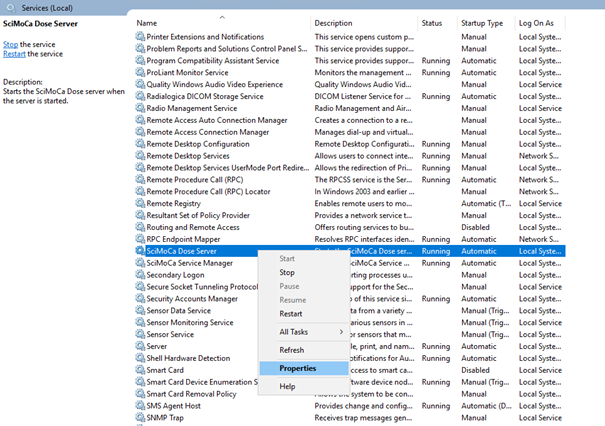
Open Windows services, right click and choose Properties:
Click the Log On tab. It should look as follows:
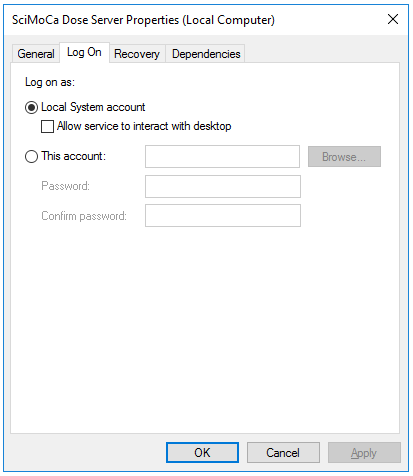
If not, please set it accordingly.
Step 4
Stop services
Please stop the following three services:
- SciMoCa Dose Server
- SciMoCa Service Manager
- Radialogica DICOM Storage Service
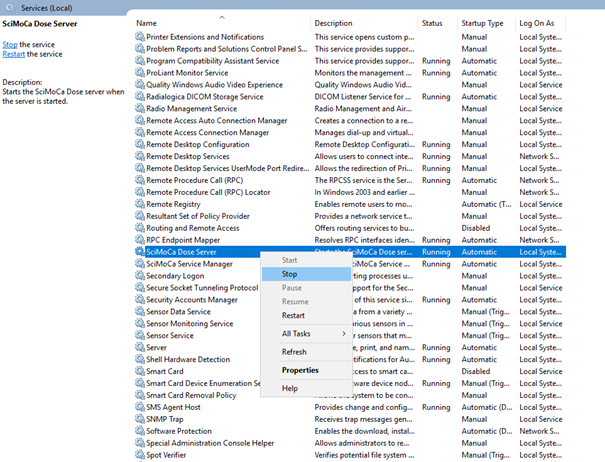
Right click on the corresponding services and choose Stop:
Step 5
Run the installer
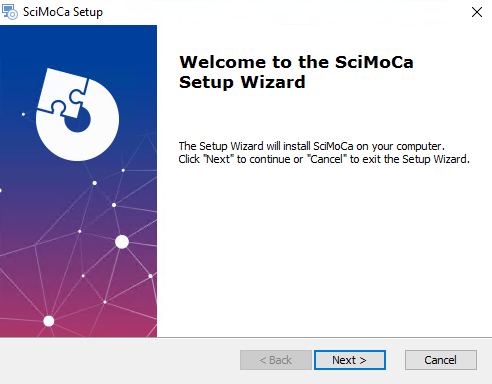
Run the installer file and click Next:
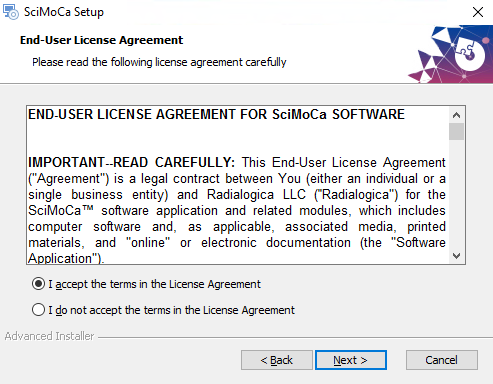
Read the License Agreement. If you agree, click Next:
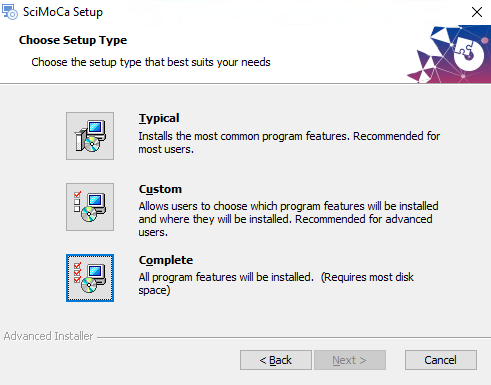
Choose the Complete setup:
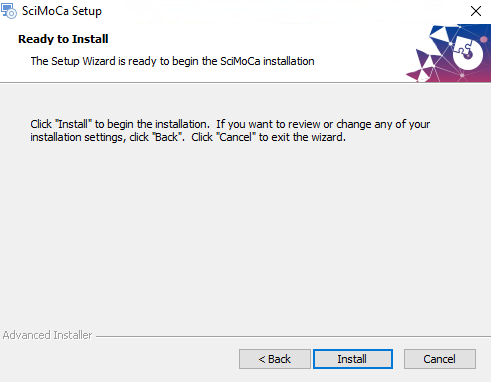
Click Install:
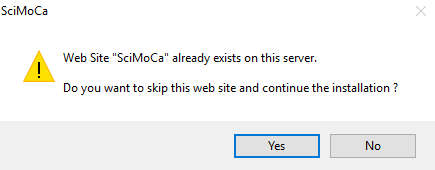
If this message should appear, click Yes:
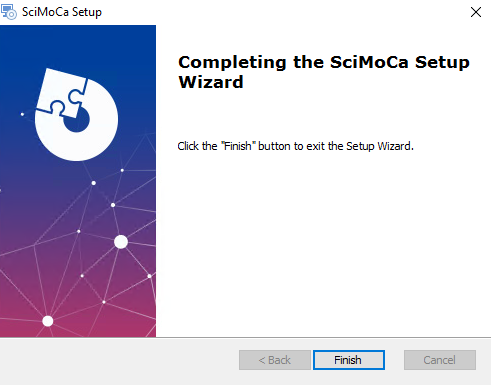
At the end click Finish:
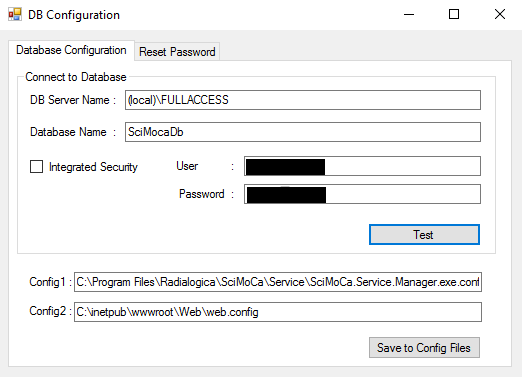
The DB Configuration window will open. You can click Test to check if everything is still ok and then you can simply close the window by clicking the X at the top right:
Step 6
Check SciMoCaDefault.xml
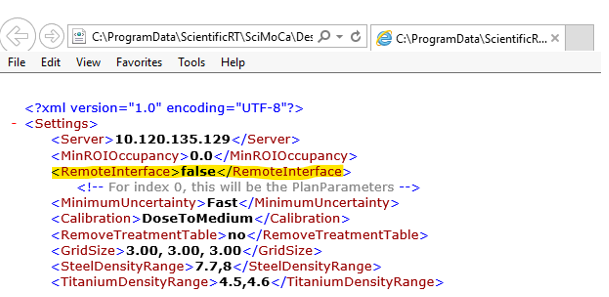
Navigate to C:\ProgramData\ScientificRT\SciMoCa\DesktopClient\config and open the file SciMoCaDefault.xml. Then check if the entry <RemoteInterface>false</RemoteInterface> is available. If not, please add it manually.
Step 7
Start services
Please start the following three services:
- SciMoCa Dose Server
- SciMoCa Service Manager
- Radialogica DICOM Storage Service
Right click on the corresponding services and choose Start:
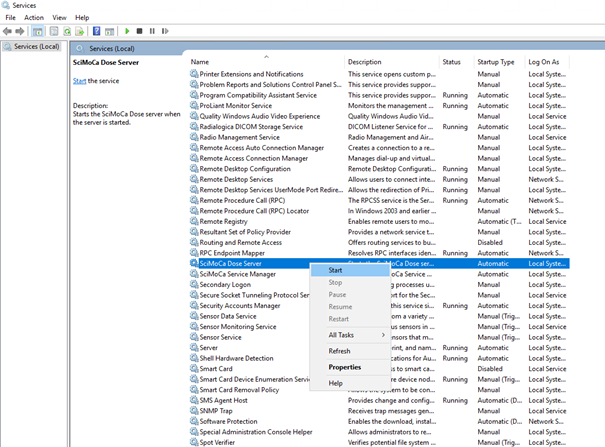
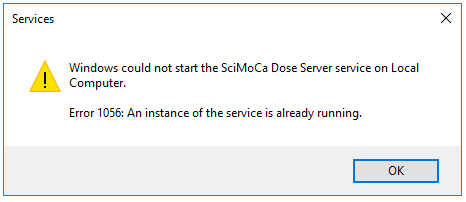
If the following message should appear, it is here described how to proceed:
Step 8
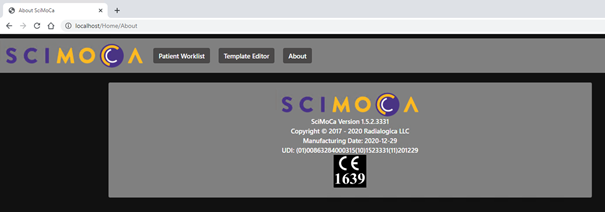
Check version
Finally, please navigate to http://localhost/Home/About and check if the current version is listed:
Step 9
Verify installation
Send a patient to SciMoCa and check if dose is calculated.